¶ Browser Extension
Insignia’s Google Chrome extension allows you to see results of records in your library’s catalog while you are conducting a Google search. Results will only appear if you have records matching your Google search criteria in your catalog.

- Open Google Chrome.
- Enter chrome://extensions/ in the address bar.

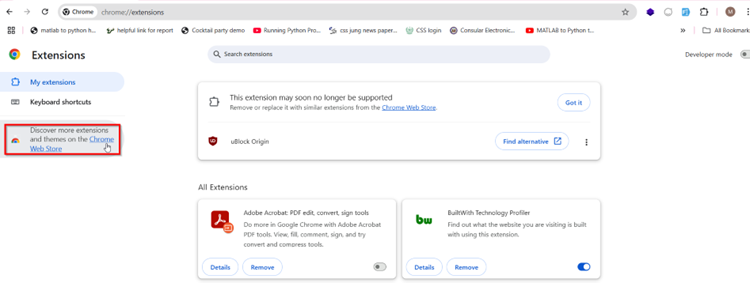
3. Scroll to the bottom of the page and click Chrome Web Store.
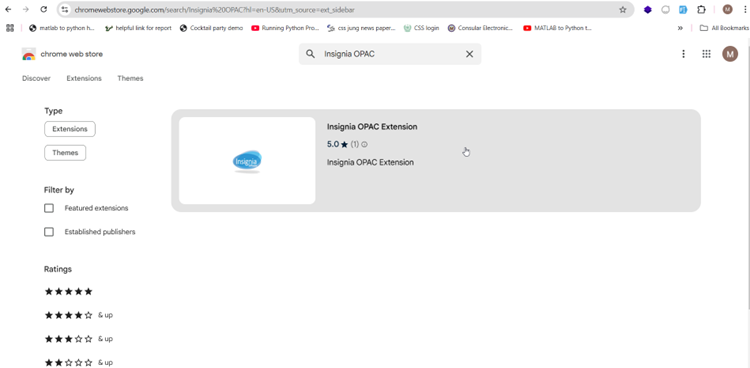
4. Enter “Insignia OPAC” into the search field and press Enter.
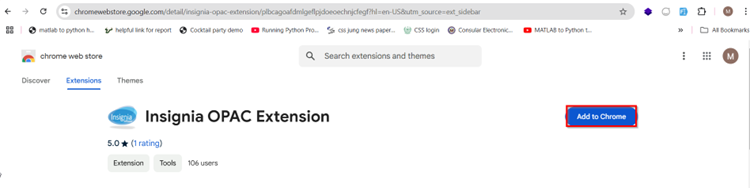
5. Click +Add to Chrome to add the extension to Google Chrome.
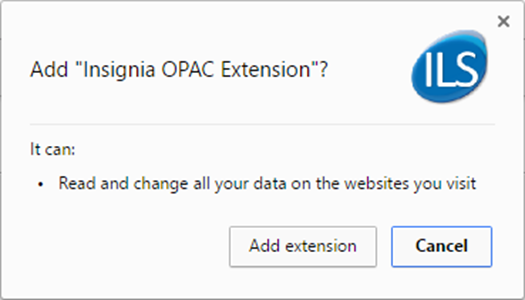
6. Click Add Extension when you are prompted.
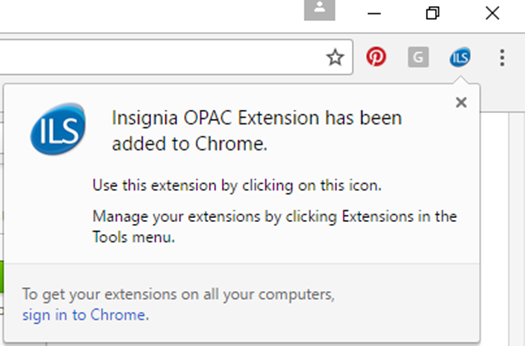
7. Click on the ILS icon that appears at the top right of the browser
8. Select your district and library from the dropdown menus. Enter your login username and password, which is the same as you would use when logging in to the ILS and OPAC.
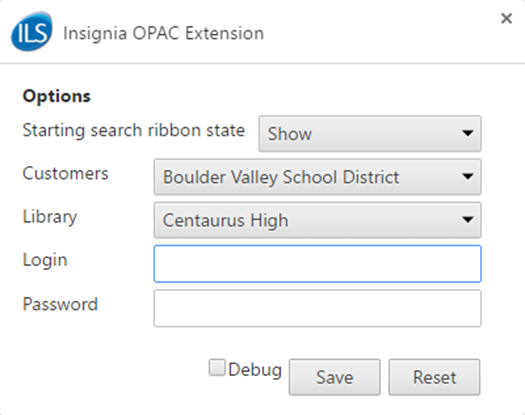
9. Click Save.
10. Close Google Chrome and reopen it to start using the Insignia OPAC extension.