¶ Content
The Content section of the Discovery Layer Manager allows users to determine the content of the elements which appear on the Home Page.
¶ Template
The Template Design feature allows you to create and edit custom widgets for the OPAC. These widgets can include text, images, hyperlinks, and other elements, which can be arranged and formatted using the design window. The Content option within the design window is where you input and edit the content for your custom widget. Once created, these widgets can be added to the OPAC layout to enhance the patron experience.
¶ New
- Navigate to Content > Template.
- Select New.
- Enter a Title for your new Content Template.
- The Template Design window supports entering titles in multiple languages (e.g., English, Spanish, French, Chinese, Arabic).
- Create your Custom Content using the Template Design Window.
- Users can select a predefined icon or add a customized icon to visually represent the template.
- To use a custom icon, select Add and upload or select an image.
- Select Save when finished.

| Option | Description |
|---|---|
  |
Change the Font Style to Bold, Italic or Underlined. |
  |
Change the background color. |
 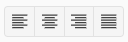 |
Change alignment (left, center, right, or justify). |
  |
Create an ordered list (numbered) or unordered list (bulleted). |
  |
Insert a hyperlink to link text to a web page or document. |
  |
View and edit the HTML source code of the content. |
 
|
Insert Image from your device or a URL. Options include: - Upload: Browse and upload an image from your device. - Web Address (URL): Enter the direct link to an image hosted online. - Alternate Text: Provide a description of the image for accessibility and SEO purposes. - Width (px) & Height (px): Set the horizontal & vertical size of the image in pixels. |
  |
Insert a file for users to view. |
  |
Create a table to organize data in rows and columns. |
¶ Edit
- Navigate to Content > Template.
- Select the Template Title to edit.
- Select Detail.
- Select Edit and edit your Content Template using the Design Window.
- Select Save when finished.
¶ Message
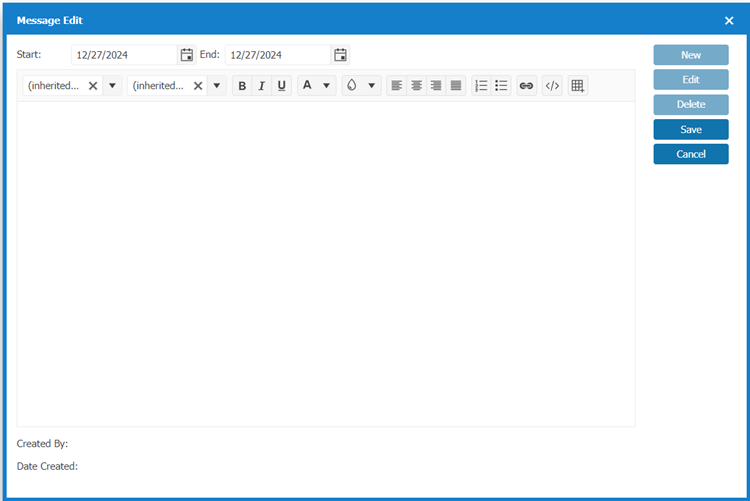
The Message window allows the user to Create and Edit messages that appear on the Discovery Layer for a fixed length of time. Messages show at the top of the Home Page under the Search box. To view messages that have expired, Select Include Expired.
¶ New
- Navigate to Content > Message.
- Select New.
- Select a Start and End date for the length of time you would like the message to appear for.
- Use the Design Window to create your message.
- Select Save when finished.
¶ Edit
- Navigate to Content > Message.
- Select the Message to edit.
- Select Detail.
- Select Edit and edit your message using the Design Window.
- Select Save when finished.
¶ News
The News window allows the user to Add, Edit, and Delete news articles or links. Content saved in the News window is used in the Widget in the Home Page Design Window.
¶ New
- Navigate to Content > News.
- Select New.
- Enter a Title for the news article.
- Create your news article using the Design Window.
- Select Save when finished.
¶ Edit
- Navigate to Content > News.
- Select the News Title to edit.
- Select Detail.
- Select Edit and edit your news article using the Design Window.
- Select Save when finished.
¶ Office Hours
The Office Hours option allows you to set custom office hours to appear on the Discovery Layer. This is useful if your library has hours such as 9:00 AM-12:00 PM, 2:00 PM-4:00 PM.
- Navigate to Content > Office Hours.
- Select Edit.
- Edit your office hours using the Design Window.
- Select Enable to enable these office hours.
- Select Save when finished.
¶ Announcements
The Announcement window allows the user to Add, Edit, and Delete. Announcements. Content saved in the Announcement window is part of the New Content element in the Home Page Design Window.
¶ New
- Navigate to Content > Announcement.
- Select New.
- Enter a Title for the Announcement.
- Create your Announcement using the Design Window.
- Select Save when finished.
¶ Edit
- Navigate to Content > Announcement.
- Select the News Title to edit.
- Select Detail.
- Select Edit and edit your Announcement using the Design Window.
- Select Save when finished.
¶ Online Resources
The Online Resources window allows the user to Add, Edit, and Delete. Online Resources. Content saved in the Online Resources window is part of the New Content element in the Home Page Design Window.
¶ New
- Navigate to Content > Online Resources.
- Select New.
- Enter a Category for the Online Resource.
- Enter the URL for the Online Resource.
- Enter a Description for the Online Resource.
- Select Save when finished.
¶ Edit
- Navigate to Content > Announcement.
- Select the News Title to edit.
- Select Detail.
- Select Edit and edit your Announcement using the Design Window.
- Select Ok when finished.
¶ Image
The Image window allows the user to Add, Delete and Move Images. Content saved in the Images window is part of the New Content element in the Home Page Design Window.
¶ New
- Navigate to Content > Images.
- Select Add images.
- Select an Image from your computer files.
- Select Save when finished.
¶ Change order of images
- Navigate to Content > Images.
- Select Edit.
- Select an Image and Select Move Up or Move Down to change the order of the Images.
- Select Save when finished.
¶ Quote of the Day
The Quote of the Day window allows the user to Add, Edit, and Delete Quotes. Content saved in the Quote of the Day window is part of the New Content element in the Home Page Design Window.
¶ New
- Navigate to Content > Quote of the Day.
- Select New.
- Add your Quote.
- Select Enabled to have it display on the Home Page.
- Select Priority number.
- Select Save when finished.
¶ Edit
- Navigate to Content > Quote of the Day.
- Select Quote to edit.
- Select Detail.
- Select Edit and edit your Quote using the Design Window
- Select Enabled to have it display on the Home Page.
- Select Priority number.
- Select Save when finished
¶ Did You Know
The Did you know window allows the user to Add, Edit, and Delete trivia. Content saved in the Did you know window is part of the New Content element in the Home Page Design Window.
Note: You can also add this from the ILS by going under the Administration > Library Setting > Home Page.
¶ New
- Navigate to Content > Did you know.
- Select New.
- Add your Quote.
- Select Enabled to have it display on the Home Page.
- Select Priority number.
- Select Save when finished.
¶ Edit
- Navigate to Content > Did you know.
- Select Quote to edit.
- Select Detail.
- Select Edit and edit your Quote using the Design Window
- Select Enabled to have it display on the Home Page.
- Select Priority number.
- Select Save when finished.
¶ Video
The Video window allows the user to Add, Edit, Delete and Reorder YouTube content. Content saved in the Video window is part of the New Content element in the Home Page Design Window.
¶ New
- Navigate to Content > Video.
- Select New.
- Enter Video Name.
- Enter the YouTube URL or Select Browse to add a Video file from your computer.
- Enter a Description for the Video.
- Select Save when finished.
¶ Edit
- Navigate to Content > Video.
- Select the Video to edit.
- Select Detail.
- Select Edit and edit your Video using the Design Window.
- Select Ok when finished.
¶ Change order of Video
- Navigate to Content > Video.
- Select an Image and Select Move Up or Move Down to change the order of the Video.
¶ Events & Newsletters
The Events & Newsletters window allows the user to Add Event & Newsletter content. Content saved in the Event & Newsletter window is part of the New Content element in the Home Page Design Window.
¶ New
- Navigate to Content > Event & Newsletter.
- Enter a Title for the Event & Newsletter.
- Select in the box to upload a picture.
- In the Upload Image pop up window put in the Web Address or Select Image to use an image from your computer.
- Write in your Description.
- Select OK.
- Select Save when finished.
¶ Edit
- Navigate to Content > Event & Newsletter.
- Select in the box to Edit.
- In the Upload Image pop up window Make changes to Web Address, Select Image, or Description.
- Select OK.