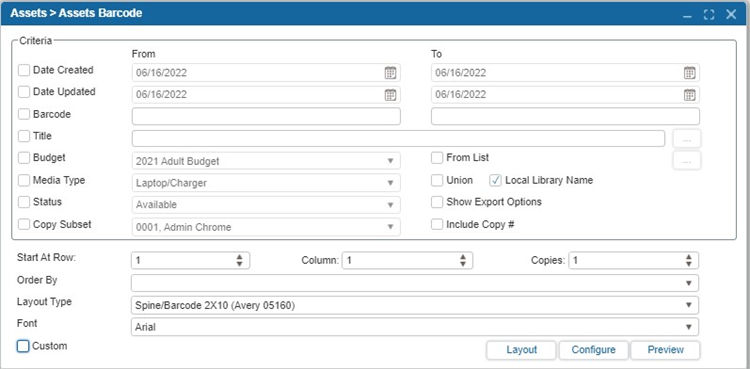
¶ Asset Barcode
Users can print asset barcodes in a variety of layouts.
- Navigate to Assets > Barcode.
- Select the asset to print barcodes for by choosing from the listed criteria. Options for criteria are:
| Criteria | Description |
|---|---|
| Date Created | Specify the date when the item was first added to the system. |
| Date Updated | Specify the most recent date when the item was modified. |
| Barcode | Enter the barcode range to print. |
| Call No | Enter the Call No range for the barcodes to print. |
| Title | Enter the Name of the item for which you want to print the barcodes. |
| From List | This criterion enables the manual scanning or typing of multiple barcodes to print |
| Include Copy # | This feature adds the copy number to the barcode label, specifically for 5 x 11 layouts, ensuring each copy is uniquely identified. |
| Reprint List | This feature prints the barcode for the copies that were added to the Reprint List under the Copy Info tab using the "Add to Reprint List" button. Selecting Clear will erase the data from the Reprint List. |
| Author | Select the author's name from the drop-down list to print the barcode layout for items belonging to that author. |
| Created By | Select a name from the drop-down list to print the barcode layout for items cataloged by that person. |
| Received By | Select a name from the drop-down list to print the barcode layout for items received by that person. |
| Copy Subset | Select the Copy Subset from the drop-down list to print the barcode layout for the items belonging to that Subset. |
| Status | Select the Status to specify the Copy Status. |
| Union | Select the Union option to print the barcode layout for items belonging to ALL Libraries within the district. |
| Local Library Name | Select to print the Local Library Name on the barcode layout. |
| Only Kit Barcode | This feature filters the barcode list to include only kit barcodes, useful for managing bundled resources. |
| Show Export Options | When selected, this feature shows the export options for barcode printing. |
| Budget | The budget field filters assets based on the budget code. You can specify the code for the assets you're searching or printing. |
| Asset Type | Assets can be filtered by their Asset type (e.g., electronic, physical). |
- Select the relevant label criteria to customize your labels:
| Criteria | Description |
|---|---|
| Start at: row and column | Select the Start at: row and column on the print sheet where printing will start. This feature allows you to continue printing on a sheet that is not fully used. |
| Order by | Select the Order by dropdown arrow to select the Barcode print order. (i.e. Call number, barcode, author….) |
| Layout Type | 1. Choose a label sheet, pick one from the dropdown list –OR– 2. Select the Layout button and scroll to the desired layout. 3. Select the desired layout. 4. Select Set Default to select the layout as default. 5. Select the box Use System Default Margin to print labels using the default margins or adjust the margins if needed. |
| Font | Allows selection of font style and size for the barcode label text. |
| Custom | This allows user to create a custom layout tailored to their specific needs, which can then be used to print barcodes. |
- Select Preview to view the labels.
- After clicking the Preview Button, select the Printer Icon to bring up the printer dialog box. Select the printer you want to print from.
- Please make sure the following settings are set:
6.1. Page Sizing & Handling needs to be set to Actual Size.
6.2. Orientation needs to be set to Portrait.
NOTE: If the Preview does not appear, this may be due to popups being disabled in the browser.
¶ Configure Barcodes
- Navigate to Assets > Assets Barcode.
- Select Configure.
- Select the appropriate SymbologyID from the dropdown menu.
3.1. Insignia recommends Code 128A and Code 39 for your barcode configuration.
3.2. If you need a new barcode scanner, Insignia recommends buying one through our company for optimal support. Please contact Insignia Technical Support for more details. - Select OK