¶ Find/Add Authority
View, manage, and create Authority Records. Authority records are linked to bibliographic records through authorized headings. Insignia provides Library of Congress authority records and can support Medical Subject Headings (MeSH) from the National Library of Medicine (NLM) and Canadian Subject Headings from Library and Archive Canada (LAC). Headings from these sources are designated as “authorized” headings. Insignia can also support local authority records.
Authority records include alternative names for the same topic, and they will have “see” and “see also” labels that will appear in the catalog.
TIP: If a library would like to use multiple authority record sources (such as LoC and MESH), please adjust custom setting OnlineAuthorityWithImportClonePriority using AdminAll credentials.
¶ Find Authority
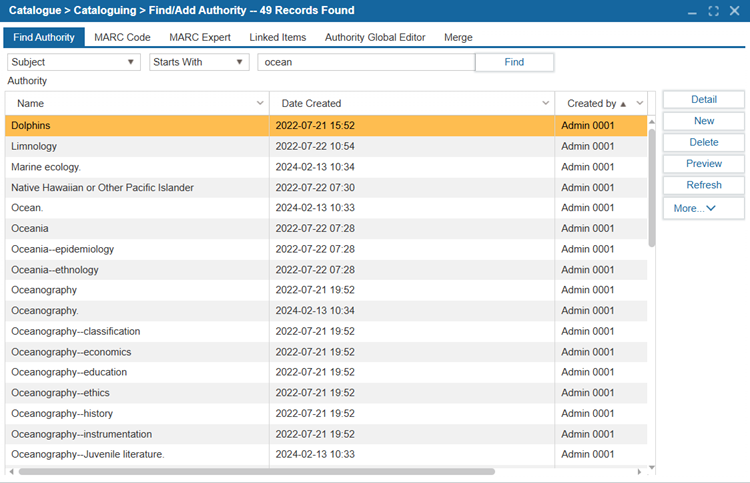
Search for Authority Records in your system and create new Authority Records.
- Navigate to Catalog > Cataloging > Find/Add Authority.
- Use the drop-down menu to select a search criteria, such as Author, Subject, etc., to find a record.
- To see the authority record details, double-click a search result or select it and Select Detail to see the details in the MARC Code tab.
¶ MARC Code
View this tab to customize tags, indicators, and subfields in your Authority records, and manage links to bibliographic records.
¶ New MARC Code
- Navigate to Catalog > Cataloging > Find/Add Authority.
- Select the MARC Code or MARC Expert tab, select New.
- Select the desired tag and Select OK.
- Select New Tag to add additional tags.
- Select Save As Template to save the record as a Template.
- Enter a Name for the Template in the Create New field or select a Template from the Select From dropdown list to update it.
- Select OK.
- Enter the required information to create the record.
- Select Save.
- Specify the index type for this authority record (i.e. Author, Subject, or both). Select OK.
¶ Edit MARC Code
- In the MARC Code or MARC Expert tab, select Edit.
- Select New Tag.
- Use the Search field to narrow down the tag you would like to add.
- Select the tag and Select Add.
- Select the Code and Select Add.
- To add a new Subfield, expand the tag using the arrow on the left and Select +New Subfield.
- Use the Search field to narrow down the Subfield Code you would like to add.
- Select Save.
- Confirm the index type for this authority record (i.e. Author, Subject, or both).
- Update Linked Bibliographic Items associated with the Authority File by selecting or deselecting checkboxes beside the item(s). Bibliographic Items will become linked when the Authorized Heading is typed in the appropriate cataloging fields.
- Select OK.
¶ Linked Items
The Linked Items Tab displays the Bibliographic records that are connected to authority records when the corresponding authorized heading is entered into the relevant cataloging fields. This ensures that items are properly linked to their authority records for accurate cataloging and referencing.
To view the catalog records linked to a specific authority record:
- In the Find Authority tab, search for the relevant Authority record.
- Select the Authority Record and navigate to the Linked Items tab.
- Select Union to view linked items in the union.
- Select Detail to view the Basic Information and MARC record.
- When an item is highlighted, the Copy Information is shown in the lower grid.
¶ Authority Global Editor
The Authority Global Editor is used to make a Global Changes to Authority Records.
- In the Authority Global Editor tab, specify the Search criteria by using the dropdowns and corresponding search field.
- Select Find.
- Change All will affect all records in the ILS and change them.
- Select Change Search Result or Change All.
- Use the checkboxes to select the records which the changes will apply to.
- Specify the criteria:
| Criteria | Description |
|---|---|
| Copy Tag | 1. Copy data from Old Tag to New Tag. 2. Select Move Over (Delete Old Tag) to move data from the Old Tag to the New Tag. |
| Copy Subfield | 1. Copy only a subfield of Old Tag to New Tag subfield. If Override Existing Value is selected, then it will override rather than adding it. 2. Specify the search and how it should be matched by using Exact Match, Start With, End With, or Not End With. 3. Specify the New Value for change. 4. Select Keep Old Value to keep the old value, 5. Select Change Old Value to change the old value. Specify any values you want to Change From and Change To and how it should be changed: Change All, Change Left, Change Right, Append At The End, or Insert In The Beginning. |
| Delete Tag | 1. Select Delete Tag and specify, if needed, what value should be matched when the Tag is deleted. 2. Select the checkbox Keep One if there are multiple tags and you would only like to keep one. |
| Delete Subfield | 1. Select Delete subfield and specify, if needed, the value match when deleting the subfield. 2. Select the checkbox Keep One to keep only one subfield. |
| Add Subfield | Specify the tag and subfield and the value to add a subfield. You can skip subfields by selecting the checkbox for Skip If Subfield Exists. |
| Change Subfield Value | 1. Change the value for a subfield for a given tag. 2. For this change to be based on only where old value matches a given string, specify the string and how it should be matched (Exact Match, Start With, End With, or Not End With). 3. Specify the New Value to be changed to. 4. Select Keep Old Value to keep the old value as well and add a new tag. 5. Select Change Old Value to change the old value. Specify the value that should be changed in the Change From field and the Change To field. Additionally, indicate how it should be changed: Change All, Change Left, Change Right, Append At The End, or Insert In The Beginning. |
- Select Commit.
- A dialog box will indicate the number of records to be changed and require confirmation of the changes.
¶ Merge Authority Records
The Merge tab under Catalog > Cataloging > Find/Add Authority allows users to merge duplicate authority and subject headings.
- Select Catalog > Cataloging > Find/Add Authority.
- Select the Merge tab.
- Search for Author or Subject using the search function.
- From the search results, select the Author(s) to be merged using the check box.
- On the Left Grid, select the Author’s name you would like to maintain in the merged record.
- Select Merge.