¶ Find/Add Document Delivery
The Find/Add Document Delivery feature enables users to request and manage document deliveries within the library system.
¶ Request Document via ILS
- Navigate to Catalog > Cataloging > Find/Add Document Delivery.
- Select New.
- Enter all relevant information including Title, Article Title, Author, ISSN, Type, Email, Status, Publication Date, Volume, Issue, Pages, Need By, DOI/PubMed ID and Requested By.
- Click Save.
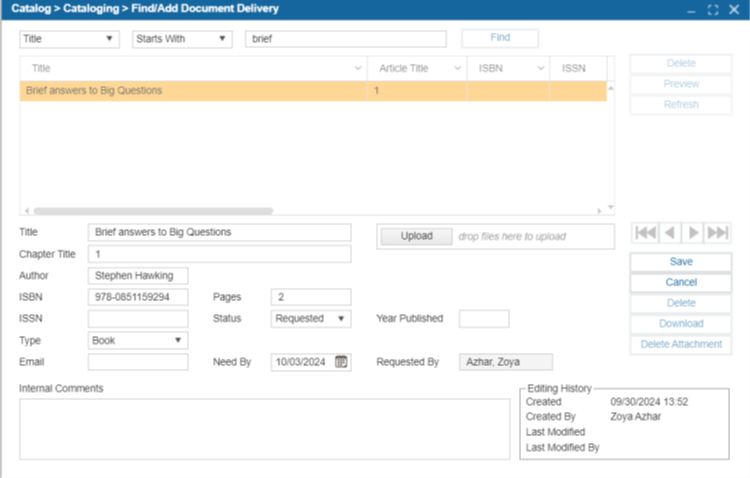
NOTE: The Patrons can also request documents via OPAC > My Account > Request Document Delivery.
¶ Request Document via OPAC
- Login to your patron account.
- Under the My Account menu, select Request Document.
- Use the Request button to initiate the request.
- Fill in all required fields including Title, Article Title, Author, ISSN, Publication Date, Vol/Issue, Pages, Need By and DOI/PubMed ID.
- Select the Request button in the Document Delivery Detail window to submit the request.
¶ Fulfill Document Delivery Requests In ILS
- Navigate to Circulation > Alerts > Document Delivery Request to view incoming requests.
- Use the date filter to search for specific requests.
- Double-click on a request to open the Find/Add Document Delivery detail window.
- Review the request details, including the Need By date and Patron Name.
- Once the request is processed, click Edit and update the Status to one of the following:
- In Progress
- Fulfilled
- Cancelled
- If needed, add an internal comment. The patron will be able to view the comment and the Status for their request in OPAC.
NOTE: You can view and manage these alerts under Circulation > Alerts > Document Delivery Request Tab, where you can also search by date for specific requests.
NOTE: To enable alerts for Document Delivery Requests, navigate to Administration > Security > Circulation > Alerts > Document Delivery Request.
¶ View Document Requests In The OPAC
- To view patron document requests in the OPAC, navigate to My Account > Request Document.
- Documents requested by this account will be listed here.
- Document requests can be edited or deleted by using the pencil or trash symbol.
TIP: When a document request has been fulfilled, the user can select the Download button to acquire the attached file.