¶ Navigating the ILS
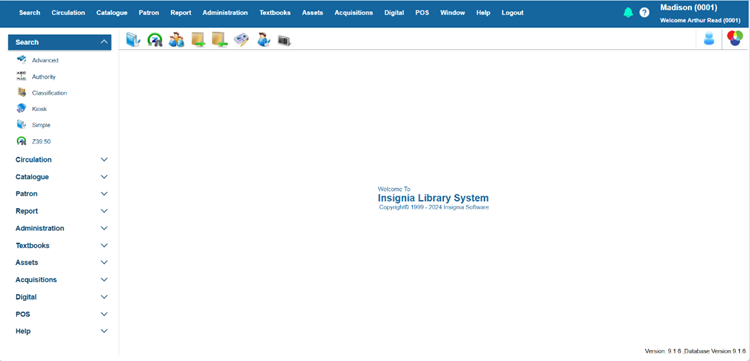
The Vertical Navigator, Dropdown Menus, and Quick Toolbar provide three ways to access modules and features in the ILS.
¶ How to Use the Vertical Navigator
The Vertical Navigator is displayed vertically on the left side of the screen. The Vertical Navigator is organized by module.
- Select a module heading to expand the menu and access the relevant features.
- Select a feature to open the feature window.
¶ How to Use the Dropdown Menus
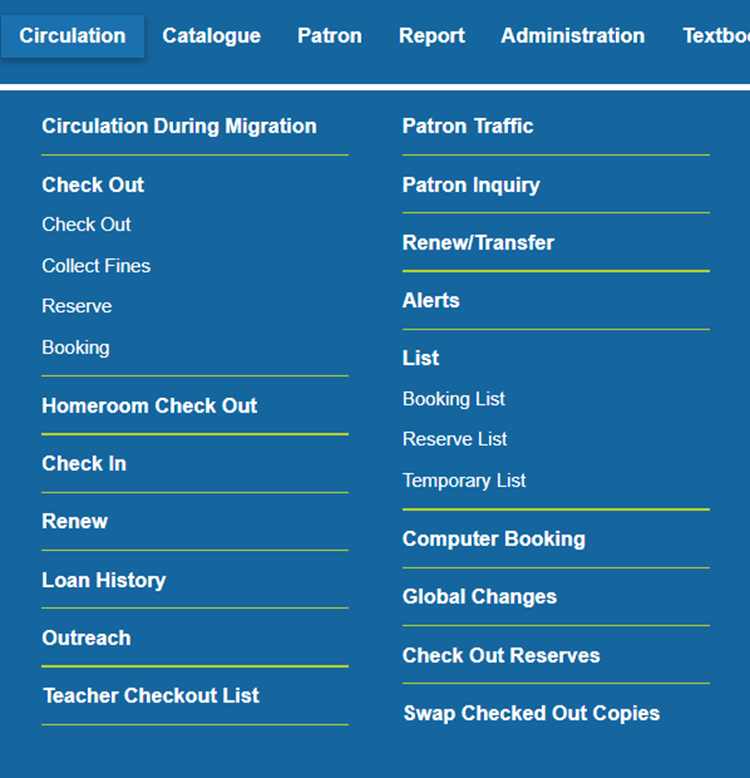
The Dropdown Menus are accessed using the headings at the upper part of the screen. Menus are organized by module.
- Select a module heading to expand to view all features under that module.
- Modules are divided into headings and sub-headings (Example: Circulation > Check Out > Check Out)
- Select on a heading or sub-heading to open the feature.
¶ How to Use the Quick Toolbar
The Quick Toolbar is displayed horizontally directly below the dropdown menu bar.
- Hover over an icon to a tool tip with the name of the feature that will be opened.
- Select an icon to open the window.

- The Quick Toolbar can be customized:
3.1. Add an item to the Quick Toolbar by selecting and dragging an item from the vertical navigator to the quick toolbar.
3.2. Delete an item from the Quick Toolbar by right-clicking an existing icon and selecting Delete.
3.3. Buttons can also be reordered by selecting and dragging them left or right.
3.4. Add a keyboard shortcut for a Quick Access feature by right-clicking on the existing icon, select Shortcut and select the shortcut you would like to apply.
3.5. Remove a keyboard shortcut for a Quick Access feature by right-clicking on the existing icon, and selecting Remove Shortcut.
TIP: Quick Toolbar can also customized using Patron > Quick Toolbar.