¶ Route Management
The Find/Add Route window in the Resource Manager offers a comprehensive set of tools to manage transportation routes and delivery schedules.
¶ Add a New Route
- Navigate to Patron > Find/Add Route > Route tab.
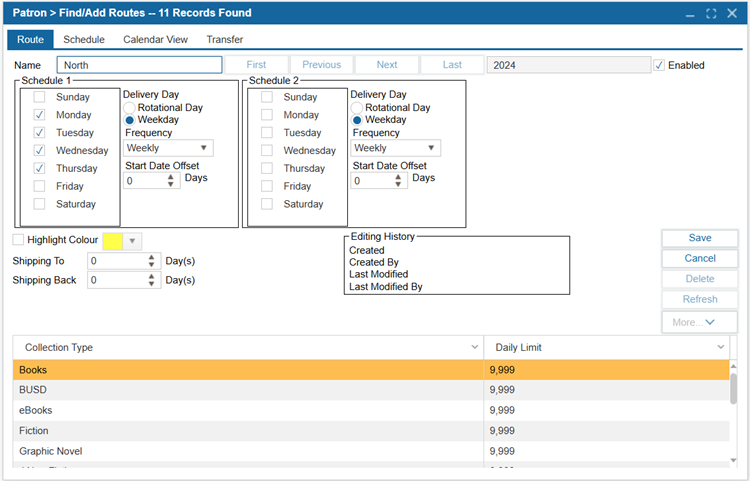
- Choose the Year for the new route.
- Select New.
- Enter the Name of the route.
| Option | Description |
|---|---|
| Enabled (Checkbox) | Marks the selected route as active. Note: If this checkbox is unchecked, the route will not be available in the Patron > Find/Add Site window for assignment to Item Circulation Types. |
| Schedule 1 & Schedule 2 | These two panels allow the configuration of up to two schedules per route. These schedules can be set up in Administration > Library Setting > Configuration II > Resource Manager tab. Both share identical options: 1. Day Checkboxes (Sunday to Saturday): Choose the days on which this route is scheduled to operate for deliveries. 2. Delivery Day (Radio Buttons): 2.1. Rotational Day: Specifies a rotating schedule (e.g., every 3rd day). 2.2. Weekday: Sets a fixed weekday-based delivery schedule. 3. Frequency (Dropdown): Determines how often the route repeats (e.g., Weekly, Bi-Weekly). 4. Start Date Offset: Specifies the number of days after the route’s start date when bookings can begin. |
| Highlight Colour | Allows the user to enable and select a color to visually distinguish the route in the Patron > Find/Add Route > Schedule tab for easier identification. |
| Shipping To | Number of days required to ship items to the destination. |
| Shipping Back | Number of days for items to be shipped back from the destination. |
| Collection Type/Daily Limit (Table) | Displays all available Collection Types (e.g., Books, eBooks, Graphic Novel). Daily Limit: The maximum number of items that can be shipped daily for each collection type (default set to 9,999) |
| Editing History | The Editing History area tracks changes made, providing a detailed log of actions taken, along with the date and user responsible for each modification. |
- Select Save.
¶ Edit A Route
- Navigate to Patron > Find/Add Route.
- Use the dropdown to select the Name of the route you would like to edit.
- Click Edit.
- Make any changes as needed, such as the year and schedule.
- Click Save.
¶ Schedule (Tab)
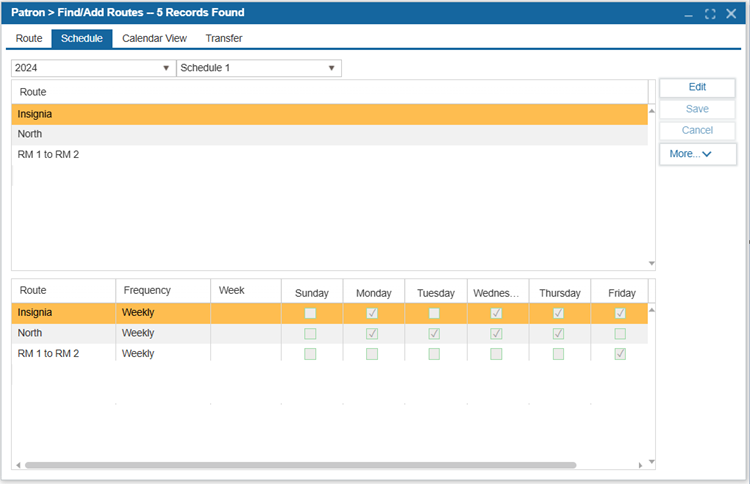
Users can also edit the route’s schedule under the Schedule tab.
- Navigate to Patron > Find/Add Routes > Schedule tab.
- Choose the relevant year from the Year dropdown.
- Choose the desired Schedule from the Schedule dropdown.
- From the upper grid, choose the Route you wish to modify.
- Select Edit.
- In the lower grid, the user can adjust the Frequency between Weekly and Bi-weekly, depending on the desired route schedule.
- Use the checkboxes under Sunday through Saturday to indicate which days the route is active.
For example, if the route should run on Monday, Wednesday, and Friday, check those boxes. - Select Save.
¶ Calendar View (Tab)
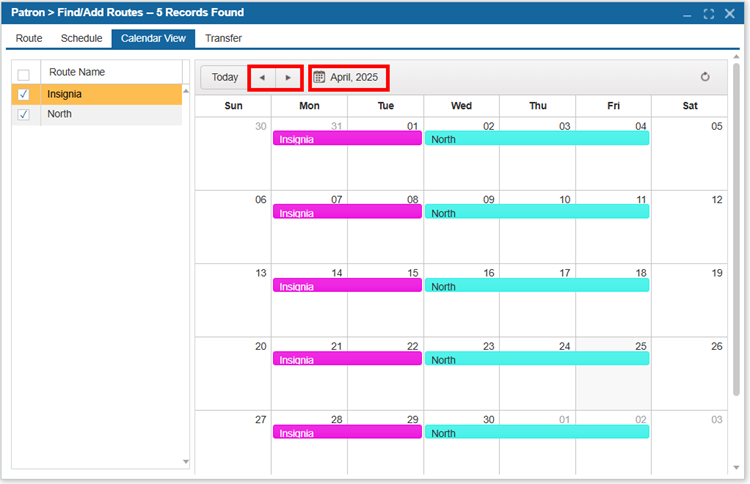
The Calendar View tab provides a visual representation of the scheduled routes across each week of the selected month. This view allows users to quickly see which routes are active on specific days, color-coded by route name for easy identification.
- Select or deselect the Routes to display or hide them on the calendar.
- Use the navigation arrows or the calendar icon to browse and select different months.
Note: This tab is for viewing purposes only—no editing or changes to the schedule can be made from here.
¶ Transfer (Tab)
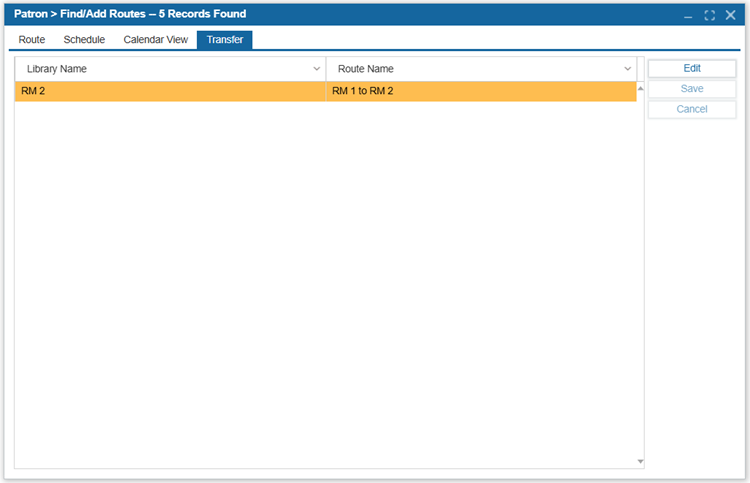
The Transfer tab is used when multiple Resource Centers are configured within a district, each Resource Center site requires a transfer configured for each other Resource Center in the district. This will allow the system to perform transfers between Resource Centers.
To set up transfers, complete the following steps at each Resource Center:
- Navigate to Patron > Find/Add Routes > Routes tab.
- Create a new Route that will be used for transfers to another Resource Center.
- Select the Transfer tab.
- Select Edit and apply the newly created route.
- Select Save.
Note: The Delivery Schedule settings at each Resource Center under Administration > Library Setting > Configuration II > Resource Manager must be identical in all of the Resource Centers. Any differences will cause transfer issues between Resource Centers.
For patron accounts housed at Library sites, it is essential to assign the appropriate RM Library (Resource Manager Location), Site, and RM Circ Type.
Patron accounts housed at Resource Manager sites require the appropriate Site and RM Circ Type. As these accounts are housed at the RM Library (Resource Manager Location), their Pickup Library takes the place of the RM Library.
If patron accounts require more than one site assigned (for Delivery or Pickup purposes) add these sites under Patron > Find /Add Patron > Additional Info tab.