¶ Z39.50 Search
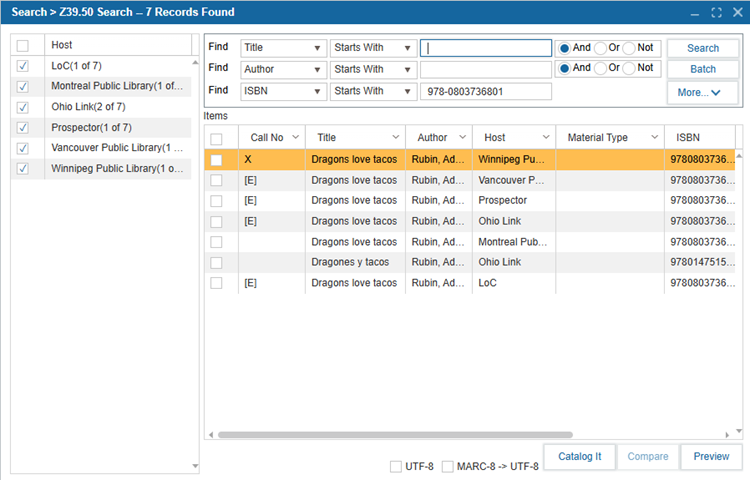
The Z39.50 Search feature allows you to search for item records outside of your catalog using Z39.50 hosts.
To add hosts, remove hosts, or edit default hosts, please see Administration > Z39.50 Hosts.
¶ Single Record Search
To search for a single record:
- Navigate to Search > Z39.50.
- Select what Hosts you would like to include in the search.
- Use the dropdown menu to select the search type (e.g. ISBN, Title).
3.1. Administrators can edit the default search types in Administration > Configuration > Search > Z3950 Search. - Use the dropdown to select a search option:
| Search Option | Description |
|---|---|
| Any Match | Retrieved search results include the specified search term. |
| Starts With | Retrieved search results start with the specified search term. |
| Not Start With | Retrieved search results exclude items that begin with the specified search term. |
| Ends With (Barcode only) | Retrieved search results end with the entered text. NOTE: To use the Ends With search option, please go to Administration > Library Setting > Configuration and make sure Copy Quick Barcode is checked. |
- Enter the search term.
- Choose Boolean operators between fields by selecting the radio buttons:
6.1. And / Or / Not - Click Search. Search results will populate in the grid below.
NOTE: To view relevant copies, disable Custom Setting HideZ3950CopyGrid when logged in as Admin ALL.
¶ Multiple Record Search
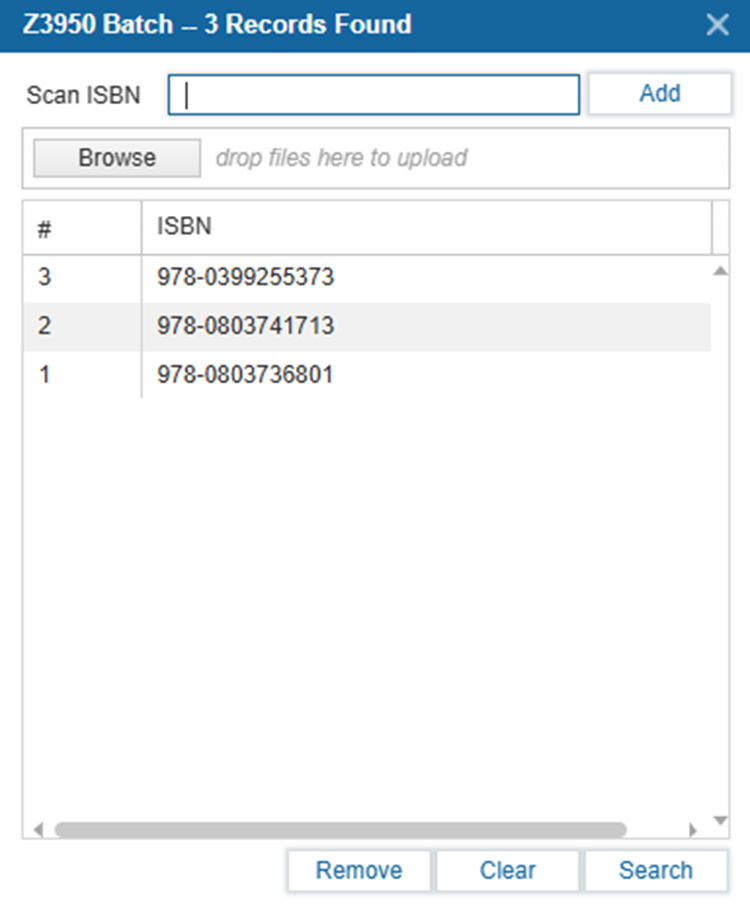
To search for multiple records by ISBN:
- Navigate to Search > Z39.50.
- Select Batch.
- Scan or type in the ISBNs or click Browse to upload a list in text (.txt) format.
- Click Search.
¶ Z39.50 Search Results
When search results have populated:
- View a single record by double-clicking on the results line.
1.1. View the record in Basic or MARC format
1.2. Use the First, Previous, Next, or Last buttons to navigate to a different record.
1.3. Select Catalog It to copy the record into your local catalog.
1.4. Select Edit MARC to make changes to the MARC record.
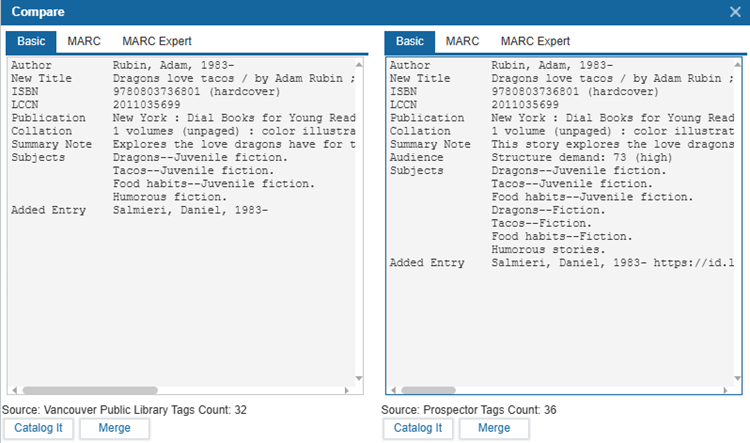
1.5 After making changes, the system will prompt you to catalog the record. - Compare two records by selecting the checkboxes and clicking Compare.
2.1. View in Basic, MARC or MARC Expert format.
2.3. Select Catalog It to catalog the selected record
2.4. Select Merge to merge the two records into one, and add the combined record to your catalog.
TIP: Users will see two merge buttons, one below each record. Select the Merge button below the record you wish to be the primary record. When merging the records, the system will maintain the primary record and add any unique fields from the non-primary record.
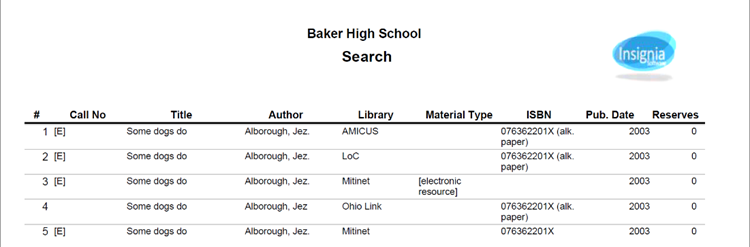
- Generate a printable list of the search results by clicking Preview.
¶ Add a MARC Record
To add a MARC record to your catalog:
- Search for a record.
- Select the checkboxes beside the titles you want to catalog.
- Click Catalog It (or click Catalog As Textbook if it is a textbook).
- A cataloging window will open to allow you to make any necessary edits before saving the record.
- If a record with a matching ISBN already exists in the catalog, a dialog box will appear asking the user if they want to overwrite the existing MARC record. The user has the following options:
| Options | Description |
|---|---|
| Create New | Maintain the existing catalog record and create an additional record from the Z39.50 selection. |
| Overwrite | Replace the existing catalog record with the Z39.50 selection. |
| Skip | Do not import the Z39.50 selection. |
| Cancel | Cancel the import action. |