¶ Set Up
¶ Resource Manager Settings
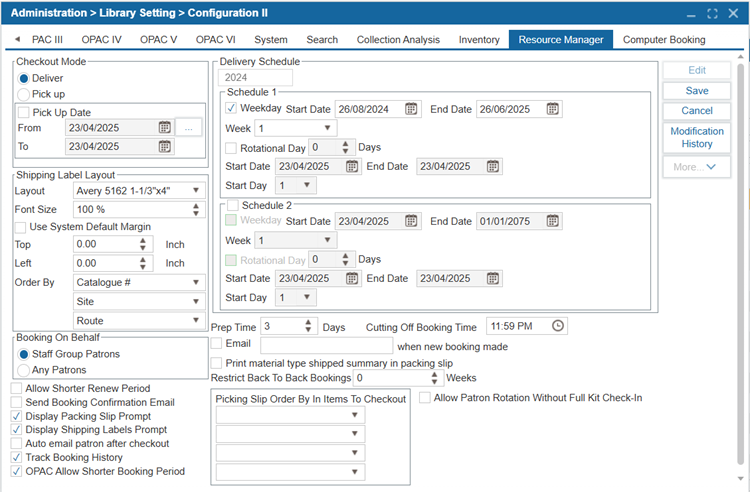
- Navigate to Administration > Library Setting > Configuration II.
- Select the Resource Manager tab.
- Select Edit.
- Change any settings that apply to your site:
| Option | Description |
|---|---|
| Year | The academic or operational year to which the current delivery schedule applies. |
| Checkout Mode | Defines how the booked items are handled after a booking is confirmed. 1. Deliver: Items will be shipped to the patron. 1.1. Pick Up Date: When “Deliver” is selected, the "Pick Up Date" option allows users to define a specific date range during which patrons are required to pick up the item from the Resource Manager site. Outside of this period, items will be delivered to the patron’s site as usual. Use the From and To fields to set the valid pickup window. 1.2. Select Ellipsis button to add additional pick up dates if needed. 2. Pick up: Patrons will pick up the items from the Resource Manager site. |
| Shipping Label Layout | Controls the format and appearance of the shipping labels generated for booked items. 1. Layout: Select the layout of the shipping label. 2. Font Size: Adjust the font size of the shipping label. 3. Use System Default Margin: If checked, uses the default top and left margins set by the system. 4. Top / Left: Manually set margin values if not using the system default. 5. Order By: Select the sequence in which Barcode, Route, Material Type, Delivery Order, Site, Location, and Catalogue# will appear on the printed shipping labels. |
| Booking on Behalf | This feature allows staff to make bookings on behalf of other patrons. The system provides two options to control this functionality: 1. Staff Group Patrons: When selected, staff can only make bookings on behalf of patrons who belong to the Staff patron group. 2. Any Patrons: When this option is selected, staff can book resources on behalf of any patron in the system, regardless of group affiliation. |
| Delivery Schedule | Allows administrators to configure how and when deliveries should occur. 1. Schedule 1 / Schedule 2: Two customizable schedules can be set for different time periods or rotations. 2. Weekday: Enable this to restrict delivery to weekdays only. 3. Start Date / End Date: Specify the period the schedule is active. 4. Week / Rotational Day / Start Day: Define patterns for rotation or fixed delivery days. |
| Prep Time | Enter the number of days required to prepare an item for delivery. |
| Cutting Off Booking Time | Defines the daily deadline (e.g., 08:00 AM) after which same-day bookings cannot be made. |
| Email when new booking made | Enter an email address to receive automatic notifications whenever a new booking is made. |
| Print material type shipped summary in packing slip | If checked, the packing slip will include a summary of the material types shipped. |
| Restrict Back to back Bookings (Weeks) | Enter the number of weeks to prevent consecutive (back-to-back) bookings for the same item. Tip: To restrict back-to-back bookings for a specific Material Type, navigate to Administration > System Setting > Parameters, select Material Type from the Parameter dropdown list, then double-click the desired Material Type. In the Edit Material Type pop-up window, choose from the following options under Back-to-Back Restriction: 1. Configuration: Applies the system-wide restriction set in Administration > Library Setting > Configuration II > Resource Manager tab. This is the default selection. 2. Weeks: Enter a specific number of weeks to block consecutive bookings for items of this Material Type. 3. No Restriction: Allows patrons to book items of this Material Type back-to-back, even if a system-wide restriction is in place under the Administration > Library Setting > Configuration II > Resource Manager tab. |
| Picking Slip Order By In Items To Checkout | Choose the sorting method for items on the picking slip when printing it from the "Items to Checkout" window. The user can order the picking slip by Catalogue#, Route, Site, Teacher, or Delivery Date. |
| Allow Patron Rotation Without Full Kit Check-In | When enabled, this setting allows a patron to continue participating in the Rotating Read circulation even if not all items in the kit have been checked in. If disabled, the patron must return all kit items before they can be included in the next rotation. |
| Allow Shorter Renew Period (checkbox) | Allows users to renew items for a shorter duration than the default period when using the Renew button in the Circulation > CheckOut window. |
| Send Booking Confirmation Email (checkbox) | When enabled, a confirmation email is automatically sent to the patron upon booking. |
| Display Packing Slip Prompt | When enabled, the system will display a prompt to print the packing slip when a booked item is being checked out through the Items to Checkout window. |
| Display Shipping Labels Prompt (checkbox) | When enabled, the system will display a prompt to print the shipping label when a booked item is being checked out through the Items to Checkout window. |
| Auto email patron after checkout (checkbox) | When enabled, an automatic email notification is sent to patrons once the booked item has been checked out. |
| Track Booking History (checkbox) | When enabled, it allows tracking and viewing of patrons' booking history under the Circulation > Checkout > Booking History tab. |
| OPAC Allow Shorter Booking Period (checkbox) | When enabled, this allows patrons to book items for a shorter period only when a conflict prevents booking for the full standard loan period. |
| Modification History (button) | Displays a history of past setting changes, with the option to filter by date for easier tracking. |
5. Select Save when finished.
¶ Circulation Types Settings
The Resource Manager enables flexible setup of Circulation Types, allowing you to define borrowing rules based on patron and item types. These settings govern how items can be booked and circulated.
¶ Item Circ Type
Item Circulation Types are created to identify types of items and set circulation rules. For example, Patrons could borrow DVDs for a maximum of 3 days, while Books could be borrowed for a maximum of 3 weeks. By creating unique item types, different circulation limits can be defined for each. A basic rule is to only create multiple item circulation types if the loaning privileges are different.
¶ New Item Circ Type
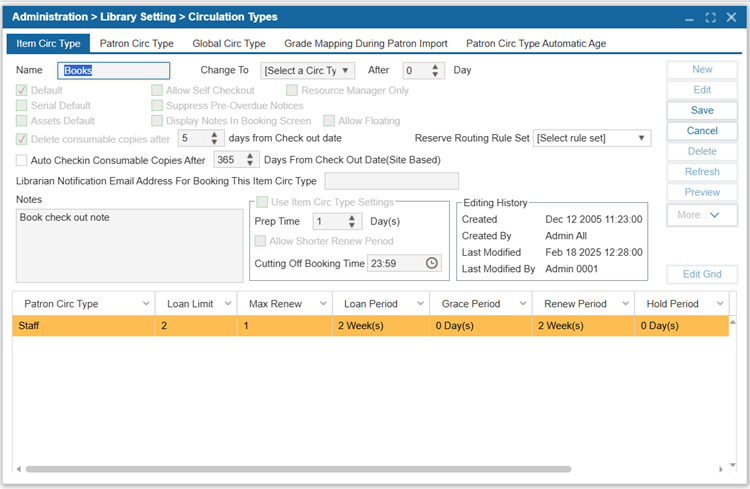
- Navigate to Administration > Library Setting > Circulation Types > Item Circ Type tab.
- Select New.
- Configure the required settings:
| Option | Description |
|---|---|
| Name | Enter the Name of the Item Circ Type (Example: Book, Hourly, DVD, etc.). |
| Default | Select this checkbox to set this item circ type as the default to be used when cataloging new items in Catalog > Cataloging > Find/Add Item. |
| Serials Default | Select to set this type as the default to be used when adding new serials. |
| Asset Default | Select to set this type as the default to be used when adding new assets. |
| Delete consumable copies after ___ days from Check Out date (Site Based) | Select to enable this setting where a consumable copy will be automatically deleted after a specified number of days from the checkout date. |
| Resource Manager Only | Select to only show this item circulation type for the Resource Manager site. |
| Suppress Pre-Overdue Notices | Enable this option to prevent pre-overdue notifications from being sent to patrons |
| Allow Self-Checkout | When enabled, the item selected in the Name dropdown will be available for checkout through the self-checkout account on the self-checkout machine. |
| Auto Checkin Consumable Copies After ____ Days From Check Out Date (Site Based) | This setting allows you to specify the number of days after the checkout date for consumable copies to be automatically checked in by the system. Enter the desired number of days in the field provided. Note that this is a site-based setting, meaning it applies specifically to the site where it is configured. |
| Librarian Notification Email Address For Booking This Item Circ Type | Enter the email address of the librarian who should receive a notification when an item is booked based on its circulation type. Note: Log in as Admin All, navigate to Administration > System Settings > Custom Setting, and set SendNewBookingToLibrarianEmailInCircType to '1'. Then, under each circulation type, enter the librarian’s email address in the Librarian Notification Email Address for Booking this Item Circ Type field. |
| Notes | Enter any extra details or information about the item or its booking. |
| Display Notes in Booking Screen | When checked, Notes associated with the item will be visible to patrons on the booking screen in the OPAC. |
| Use Item Circ Type Settings | Specify the number of days needed to prepare items under this Item Circ Type before they are ready for delivery. This value overrides the default Prep Time set in Administration > Configuration II > Resource Manager tab for all items using this circulation type. |
| Editing History | The Editing History area tracks changes made, providing a detailed log of actions taken, along with the date and user responsible for each modification. |
- Select Save.
- Repeat this process for each Item Circ Type as needed.
¶ Edit Circ Type
- Navigate to Administration > Library Setting > Circulation Types > Item Circ Type tab.
- Use the Name dropdown to select an Item Circ Type you would like to edit.
- Select Edit.
- Make any changes as needed.
- Select Save.
¶ Delete Circ Type
- Navigate to Administration > Library Setting > Circulation Types.
- Use the dropdown to select the Name of an Item Circ Type you would like to delete.
- Select Delete.
- Select Yes to confirm the deletion.
¶ Patron Circ Type
Patron Circulation Types are created to identify groups of patrons with unique circulation rules. For example, Adults could borrow 20 items while juveniles could borrow 10 items. By creating unique patron types, different circulation limits can be defined for each. A basic rule is to only create multiple patron circulation types if the loaning privileges are different.
¶ New Patron Circ Type
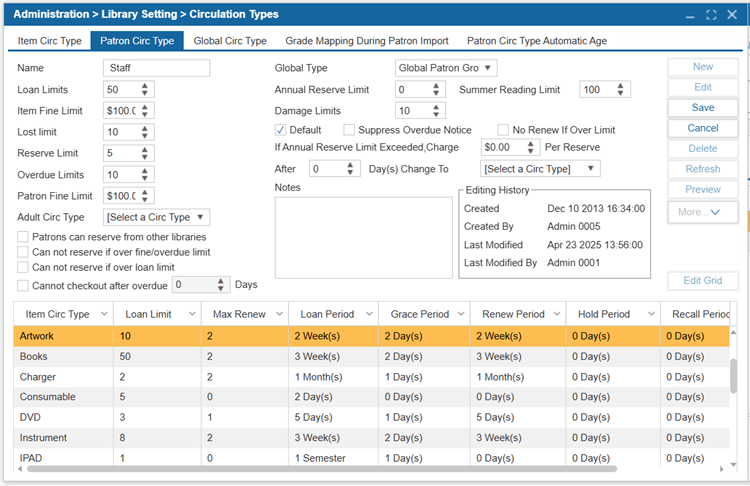
- Navigate to Administration > Library Setting > Circulation Types.
- Select the Patron Circ Type tab.
- Select New.
- Enter the Name for the new Patron Circ Type.
- Configure the required settings:
| Option | Description |
|---|---|
| Default | Select this checkbox to use this Patron Circ Type as the default when new Patrons are added. |
| Loan Limit | Defines the total loan limit for a patron group. It specifies the maximum number of items a patron can check out across all item circulation types combined. |
| Item Fine Limit | Defines the maximum amount of accumulated item fines allowed for a patron group. |
| Lost Limit | Defines the maximum number of accumulated lost items allowed for a patron group. |
| Reserve Limit | Defines the total number of items a patron group can reserve across all circulation types. |
| Overdue Limit | Defines the maximum number of accumulated overdue items allowed for a patron group. Once a patron reaches this limit, they will no longer be able to check out any items, regardless of the item circulation type. |
| Patron Fine Limit | Defines the maximum accumulated fine limit for a specific patron group. |
| Adult Circ Type | This setting allows the system to automatically move patrons from one group to another based on their age which should be defined under the Patron > Find/Add Patron > Patron tab. For example, a “Child” patron group (defined in the Name field) would be automatically moved to the “Adult” group when they reach the appropriate age which will be defined under Custom Setting “JuvenileAge”. This feature ensures that juvenile patrons are transitioned to the adult patron group automatically. |
| Suppress Overdue Notice | Select to supperess overdue messages from being sent to this Patron Circ Type. Fine messages will still be sent. |
| No Renew If Over Limit | Select to disable renewals for Patrons who have surpassed any limit set in this window. |
| Cannot checkout after overdue ____ Days | This setting defines the number of days a patron can have overdue items before they are no longer able to check out any additional items. Once the specified number of days is reached, the patron will be restricted from checking out new items until the overdue items are returned. |
| Notes | The Notes area is used to capture any additional information or comments relevant to a specific Patron Circ Type. This can include special instructions, reminders, or details that do not fit into other designated fields. Notes can help provide context or clarification for staff. |
| Editing History | The Editing History area tracks changes made, providing a detailed log of actions taken, along with the date and user responsible for each modification. |
| Damage Limit | This setting defines the maximum number of accumulated damaged items allowed for a specific patron group. |
| After _____ Days Change to [Select a Circ Type] | If you would like the patron circulation type to change automatically after a set period of time, enter the number of days after which the patron circulation type will change in the After ____ Day(s) box and use the Change To dropdown to select the new patron circulation type. |
| Editing History | The Editing History area tracks changes made, providing a detailed log of actions taken, along with the date and user responsible for each modification. |
- Specify all the parameters for this Patron Circ Type in the upper part of the window. These are overall loan parameters that are limits imposed on all the Item Circ Types combined. (For example, even if a Patron Circ Type is allowed to take out 10 books and 10 magazines, if their overall Loan Limit is set to 15, they will only be able to take out 15 items total.)
- Select Save.
¶ Edit Patron Circ Type
- Navigate to Administration > Library Setting > Circulation Types.
- Select the Patron Circ Type tab.
- Select a Patron Circ Type Name from the list you would like to edit.
- Select Edit.
- Make any changes needed.
- Select Save.
¶ Delete Patron Circ Type
- Select Administration > Library Setting > Circulation Types.
- Select the Patron Circ Type tab.
- Select a Patron circulation type Name from the list to delete.
- Select Delete.
- Select Yes to confirm deletion.
¶ Modifying Loan Parameters
To change the loan limits for a specific Item or Patron Circ Type, you can use the lower grid in either the Item Circ Type or Patron Circ Type tabs.
- Navigate to Administration > Library Setting > Circulation Types.
- Select either the Item Circ Type tab or Patron Circ Type tab.
NOTE: The corresponding type will be updated in the table in the other tab.
- Select the Name from the drop-down menu.
- Select the tab (Item Circ Type or Patron Circ Type) where you want to update loan limits in the lower grid.
- Select Edit Grid or double-click the selection.
- Set up the loan settings in the Loan Trap window:
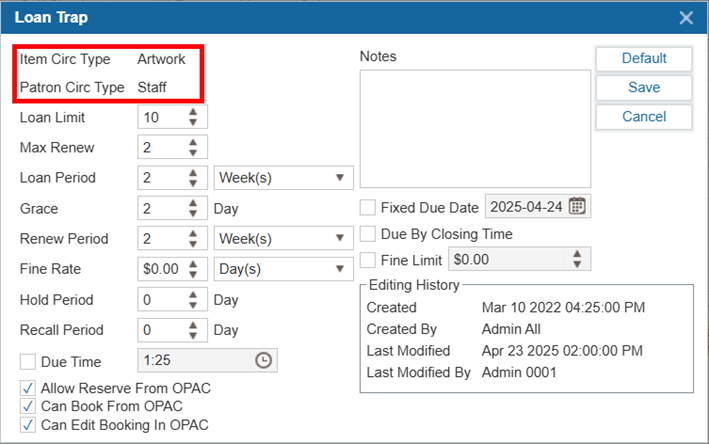
| Option | Description |
|---|---|
| Loan Limit | The maximum number of items of this type that a Patron can Check Out at a given time. This number cannot exceed the overall loan limit set in Patron Circ Type tab. |
| Max Renew | The number of times an item of this type can be renewed. |
| Loan Period | The length of time the item is checked out for. Unit options include hours, days, weeks, months, years, semesters, or academic years. Note: Semesters and Academic Years can be configured under Administration > Library Setting > Library Info > Semester/Period/ILL tab. |
| Grace | The period between the item being marked as overdue and fines beginning to accrue. Set the grace period to 0 to indicate fines should be charged as soon as an item is overdue. |
| Renew Period | The length of time the item is checked out after renewal. Unit options include hours, days, weeks, months, years, semesters, or academic years. |
| Fine Rate | The rate at which overdue fines are calculated for the item type. |
| Hold Period | This value represents the number of days for which items will remain on reserve. |
| Recall Period | When a library issues a recall notice for an item, the recall period is the number of days a patron has to return an item before the item is considered as overdue. |
| Due Time | A specific time of day when items will become overdue. |
| Notes | Enter any relevant notes to the circulation type in this field. |
| Fixed Due Date | When enabled, the item will always be due on the selected date. |
| Due By Closing Time | When enabled, the item will be considered overdue on the due date after the library’s closing time. |
| Fine Limit | This setting allows you to define the maximum fine limit for a specific item. |
| Default (Button) | Clicking on the Default button in the Loan Trap window resets the loan parameters (e.g., Loan Limit, Max Renew, Loan Period, etc.) to match those set for the Default Item Circ Type. Example: If the Item Circ Type "Book" is set as the default for Patron Circ Type "Staff", then when modifying or adding a new Item Circ Type (e.g., Graphic Novels) for the same patron type, clicking the Default button will automatically copy the loan parameters from "Book" to "Graphic Novels". |
| Can Book From OPAC (checkbox) | This checkbox determines whether patrons with the selected patron circulation type can book items from the OPAC. If unchecked, the "Book Item" button will be hidden from the patron in the OPAC, preventing them from booking the item. |
| Can Edit Booking In OPAC (checkbox) | Check this box to allow patrons to modify their bookings for items under this circulation type directly from the OPAC. When enabled, the Edit Booking button will appear under My Account > My Borrowing > Booking on the OPAC. If unchecked, patrons will not see the option to edit their bookings. |
| Editing History | The Editing History area tracks changes made, providing a detailed log of actions taken, along with the date and user responsible for each modification. |
- Select Save.
¶ Patron Record Settings
To make use of the Resource Manager features, each patron must have a properly configured record in the system.
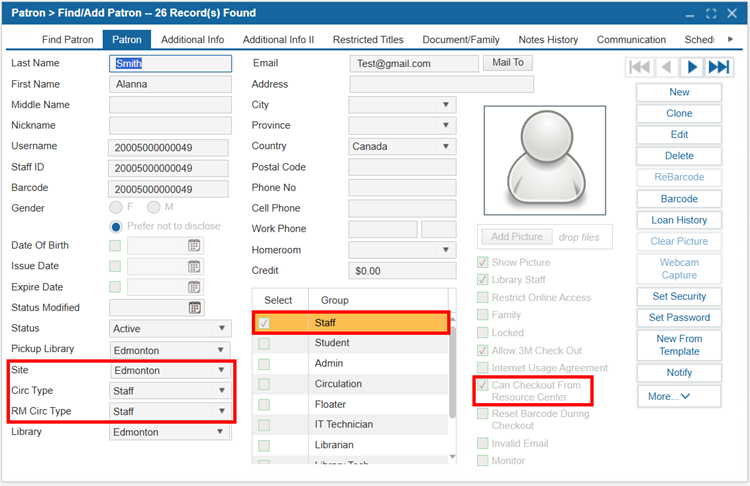
- Navigate to Patron > Find/Add Patron.
- Search for the patron’s name to make sure you are not creating a duplicate patron record.
- To add a new patron, select New Patron.
3.1. Scan a preprinted barcode number if you use library cards, or leave the barcode field blank for the system to assign one. - Enter the patron’s information in the available fields.
4.1. The required information is Last Name, First Name, Patron Group, and Circulation Type. - Select the proper Circulation Type and RM Circ Type from the dropdown list and Group from the checklist.
- Select the Site from the dropdown list.
- Select the checkbox Can Checkout From Resource Center.
- Select Save.
Note: The Custom Setting "ResetRMSitesAtMonth", available when logged in as Admin All, allows you to specify a month (1–12) to reset teachers’ default working sites. The default value is 0, which means no reset will occur. When set, teachers or patrons logging into the Resource Manager OPAC for the first time during the specified month will see a pop-up prompting them to confirm or update their district or site information.