¶ Find/Add Asset
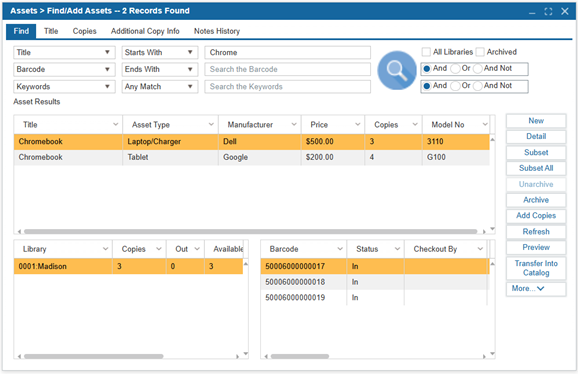
The Find/Add Asset window allows staff to catalog non-traditional library items such as technology, equipment, or instruments for circulation purposes.
¶ Find an Asset
To search for an existing asset:
- Navigate to Assets > Find/Add Assets.
- Search for the asset by any of the available parameters including Serial Number and Model Number, which are especially useful for searching electronics.
- When searching by Barcode, only the asset with that barcode will be returned in the search. Barcodes can be searched by the following criteria: Ends With, Starts With, Exact Match, and Not Start With.
- To see the results for the entire district, select the Union checkbox.
NOTE: To use the Ends With search, please go to Administration > Library Setting > Configuration > and make sure Copy Quick Barcode is enabled.
- Enter search criteria and press Enter on the keyboard or Select Find. The option from the first dropdown menu will display all cataloged assets.
- Select an item from the upper grid to view the details for that asset. The bottom-left grid displays the total number of asset copies for each site including the status while the bottom-right grid displays the list of copies at the selected site including the barcode and copy info.
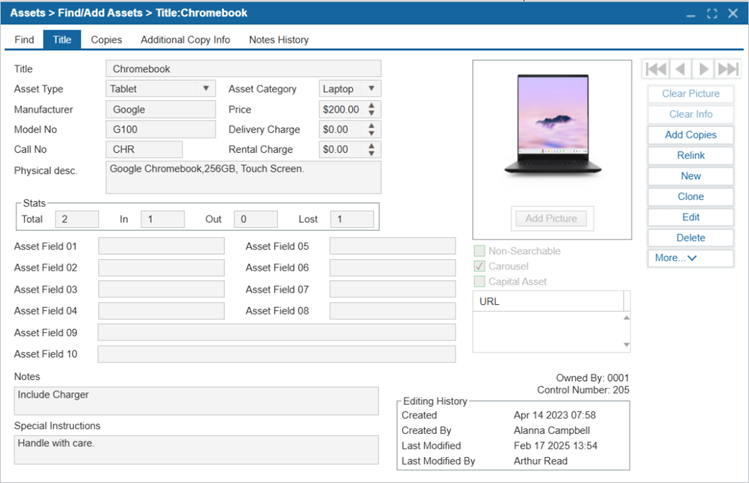
- To view detailed information about a specific asset, either double select the asset or select the asset and Select Detail. View the Editing History at the bottom for information on who created and edited the asset last. This information can become important when several sites with their own assets share one asset record in one site for the whole district.
¶ Create a New Asset Record
- Navigate to Assets > Find/Add Assets.
- Select New.
- Enter information in the relevant fields:
| Field | Description |
|---|---|
| Title | A unique identifier assigned to each textbook title in the library. Enter a barcode or leave blank to have Insignia populate this field. Barcodes can be system based, or site based. |
| Asset Type | Assign an Asset Type. NOTE: You can add additional Asset Types from the dropdown menu Administration > System Setting > Parameters. |
| Asset Category | Assign an Assign Category. |
| Manufacturer | Enter the Manufacturer of the Asset. |
| Model No | Enter the Model Number. |
| Call No | Assign a Call Number. |
| Price | Enter the purchase price of the asset. |
| Delivery Charges | Add delivery charges associated with the asset. |
| Rental Charges | Specify the rental charge for the asset (if applicable). |
| Physical Description | Provide a detailed description of the asset. |
| Stats | The Stats window shows the total number of items under the current record present in the library along with the count of items that are currently IN, OUT, or LOST. |
| Add Picture | To add a cover image for the asset, Select Add Picture and browse for an image from your computer. Alternatively, you can drag and drop the image from your computer into the drop files here to upload area. |
| Notes | Add any additional notes about the asset. |
| Non-Searchable | Select to make the item non-searchable on the OPAC. |
| Carousel | The Carousel check box is used to show the item on the asset carousel, which can be added to the OPAC homepage using the Discovery Layer Manager. |
| Capital Asset | If the Asset is expensive, Staff can mark an asset Capital Asset. Staff can also print a report on Capital Assets with only Capital Assets. |
| Asset Fields 1-10 | Custom fields for additional asset information. These can be configured in Administration > System Setting > Customized Field Definition. |
| Special Instructions | Add any special instructions for the asset (e.g., "Handle with care. Do not expose to liquids.") |
| URL | Enter a relevant web link associated with the asset. |
4. Select Save
¶ Relink Barcode: relink a copy to another asset
If an asset copy is linked incorrectly to a record, the Relink button allows the user to link the barcodes to the correct asset title. Any barcodes used to relink must exist in the system. You can relink a copy to its barcode by Selecting Relink and scanning in the copy’s barcode. You can also add and remove multiple barcodes from this window. Select Apply to apply the changes.
¶ Clone Asset Record
The Clone button enables users to create a copy of a record which can be modified as needed.
TIP: The Clone button will also Clone Cover Images from the Asset.
¶ Add Copies
- Navigate to Assets > Find/Add Assets.
- Select the title and double Select the asset or Select Detail to go into the Title tab.
- Select Add Copies.
- Enter the number of copies to be added. Select OK.
NOTE: To disable this popup, adjust the configuration setting ‘Prompt copies number when adding copies’.
- When adding a single copy, the barcode field can be populated manually by scanning or typing the barcode. Alternatively, if the barcode is left blank, the system will auto-populate it upon saving the record.
- When adding multiple copies, specify how you would like to populate the barcode fields:
| Field | Description |
|---|---|
| Generate Automatically | The system creates barcodes based your specified parameters. NOTE: To set up your Asset Barcode parameters, see the ‘Assets Barcode’ setting in Administration > Configuration. |
| Successive Barcodes Start From | The system adds barcodes starting from a specified number. |
| Set Barcode Individually | Scan or type the barcode for each asset copy. |
- Select OK.
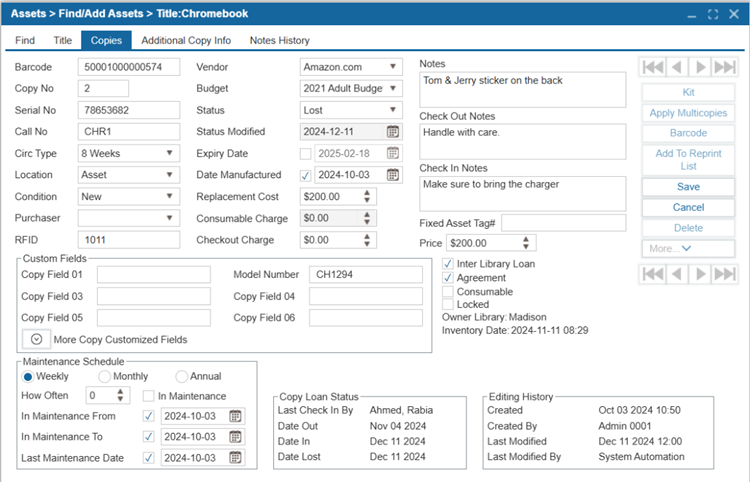
- Enter the relevant copy fields:
| Field | Description |
|---|---|
| Copy No | A unique identifier for each copy of an asset. Used to distinguish between multiple copies of the same asset. This field is populated automatically. |
| Serial No | Enter the unique serial number of the asset. This is essential for tracking individual assets, especially for electronics or equipment |
| Call No | Enter the Asset call number. |
| Circ Type | Enter the circulation type used to determine circulation parameters. |
| Location | The physical location of the asset within the library or facility. Helps staff and patrons locate the asset. |
| Condition | The current condition of the asset (e.g., new, good, damaged). Used to assess the usability and maintenance needs of the asset. |
| Purchaser | The person or department responsible for purchasing the asset. Used for tracking procurement and budgeting. |
| RFID | A unique identifier for assets with RFID tags. |
| Vendor | The vendor or supplier from whom the asset was purchased. Used for tracking procurement and warranty information. |
| Budget | The budget code or category under which the asset was purchased. Used for financial tracking and reporting. |
| Status | The current status of the asset (e.g., available, checked out, in maintenance). |
| Status Modified | The date when the asset's status was last updated. Automatically populated by the system |
| Expiry Date | The expiration date of the asset, if applicable (e.g., for consumable items or subscriptions). Used to track when the asset needs to be replaced or renewed. |
| Date Manufactured | The date when the asset was manufactured. Used for warranty tracking and asset lifecycle management. |
| Replacement Cost | The estimated cost to replace the asset. If a patron loses an asset, they will be charged this amount. |
| Consumable Charge | The charge applied to patrons for consumable items that do not need to be returned. |
| Checkout Charge | A Checkout Charge can be applied in the copy information. This allows you to specify which copies have a charge associated to them. |
| Notes | General notes or comments about the asset. Used to provide additional information or instructions for use |
| Check Out Notes | Notes specific to the checkout process for the asset. Used to communicate special instructions or conditions for borrowing. |
| Check In Notes | Notes specific to the check-in process for the asset. Used to document any issues or observations when the asset is returned. |
| Fixed Asset Tag | A unique identifier for fixed assets (e.g., equipment, furniture). Used for tracking and inventory management. |
| Price | The purchase price of the asset. Used for financial tracking and reporting. |
| Inter Library Loan | Indicates whether the asset is available for interlibrary loan. Used to manage lending between libraries. |
| Agreement | Any agreements or contracts associated with the asset (e.g., leasing agreements, warranties). Used to track legal or financial obligations. |
| Consumable | Indicates whether the asset is a consumable item (e.g., supplies, workbooks). Used to track items that do not need to be returned after use. |
| Locked | The record will remain unaffected by the daily update/import process. |
| Custom Fields | These fields allow you to capture additional, customizable information about each asset copy that may not be covered in standard fields. You can rename and configure these fields via Administration > System Setting > Customized Field Definition. |
- Enter a Maintenance Schedule:
| Field | Description |
|---|---|
| Frequency (Weekly/Monthly/Annual) | Automatically changes an asset's status to "Maintenance" when it reaches its next scheduled maintenance date. Staff can set maintenance frequency (e.g., weekly, monthly, annually) based on the asset's usage and maintenance requirements.. |
| How Often | Specify the interval for maintenance (e.g., every 2 weeks, every 3 months). This works in conjunction with the Frequency radio buttons. |
| Set Barcode Individually | This is a status field that is automatically updated by the system when the asset reaches its next maintenance date. |
| In Maintenance | This is a status field that is automatically updated by the system when the asset reaches its next maintenance date. |
| In Maintenance From | Set the start date for the maintenance period. This is useful for tracking when maintenance begins. |
| In Maintenance To | Set the end date for the maintenance period. This helps track when the asset will be available again. |
| Last Maintenance Date | The date when the asset was last serviced. Used as a reference point for calculating the next maintenance date. |
- Select Save.
- Additional information can be added to the asset copy record on the Additional Copy Info Tab:
| Field | Description |
|---|---|
| P.O. Number | The Purchase Order (P.O.) number associated with the procurement of the asset. Used to track and reference the purchase order in financial and procurement records. |
| Invoice # | The invoice number associated with the purchase of the asset. Used for tracking procurement and financial records. |
| Dimensions | The physical dimensions of the asset (e.g., height, width, depth). Used for space planning and storage purposes. |
| Model | The model number or name of the asset, as provided by the manufacturer. Used for identification and ordering replacement parts. |
| Wireless MAC | The Media Access Control (MAC) address for the wireless network interface of the asset (if applicable). Used for network configuration and troubleshooting. |
| Wired MAC | The Media Access Control (MAC) address for the wired network interface of the asset (if applicable). Used for network configuration and troubleshooting. |
| Interior Details | Specific details about the interior components or features of the asset. Used for maintenance, repair, or operational purposes. |
| Repairs | A record of any repairs performed on the asset. Includes details such as the date of repair, type of repair, and who performed the repair. |
| Previous Repairs | A history of past repairs performed on the asset. Used to track the maintenance history and identify recurring issues. |
| Copy Field 1-10 | Copy customized fields are searchable in the Find/Add Asset window, so you may wish to use these in order to specify other copy information that does not fit in standard fields. TIP: Customize the Copy Field labels by using Administration > System Setting > Customized Field Definition |
¶ Apply Multicopies
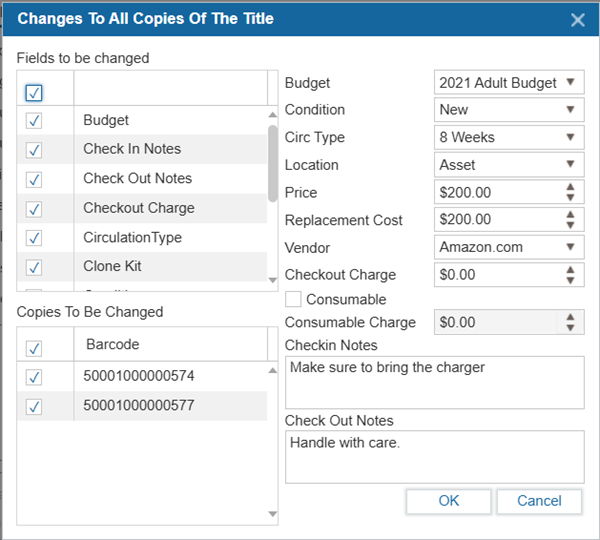
Apply Multicopies can be used to set values for all asset copies for this title.
- Navigate to Assets > Find/Add Assets > Copies tab.
- Select Apply Multicopies.
- Select the values that will be changed and enter the new value.
- Select Consumable if the item is a consumable item and enter a consumable charge if necessary.
- Select the Apply To Union checkbox if the values need to be changed for all the copies in the district.
- Select OK to save changes.
¶ Add Kit Pieces
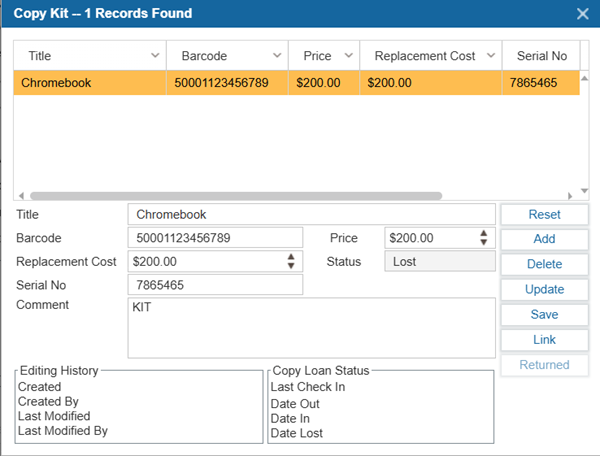
If an item has extras, such as a laptop case, they can be tracked by being added to the copy information as a kit.
- Navigate to Assets > Find/Add Assets.
- Select the Copies tab.
- Select Kit.
- Enter the Title of the extra items, Barcode, Price, Status, and Comment.
- Select Add.
- A popup message will appear, prompting if these ancillary items need to be applied to all existing copies.
- Specify the copies to which these items are to be added and Select OK.
- Select Save when the kit information is complete.
¶ Add To Reprint List
The Add to Reprint List button allows staff to add asset copies to a reprint list for generating new barcodes or spine labels. This feature is useful when barcodes or labels need to be reprinted due to damage, loss, or updates.
To add the items under reprint list, follow the steps:
- Navigate to Assets > Find/Add Asset > Copies tab.
- Select the asset copy that requires a reprint.
- Click the Add to Reprint List button.
- The selected copy will be added to the reprint list, which can be accessed in the Barcode/Spine Label window.
¶ Notes History
The Notes History Tab provides a detailed record of all notes and comments added to an asset copy over time. This feature is useful for tracking changes, maintenance activities, or other important information related to the asset.
To see the notes history:
- Navigate to Assets > Find/Add Asset > Copies tab.
- Select the asset copy and click the Notes History Tab.
- View the history of notes, including:
3.1. Copy Barcode: Barcode of the Asset copy.
3.2. Date and Time: When the note was added.
3.3. Created By: The user who added the note.
3.4. Notes: The content of the note.
¶ Archive or Delete a Record
¶ Archiving Asset Title Records
Archiving an asset removes it from active circulation and hides it from most staff and patron interfaces, but the record is retained in the system for historical purposes. Deleting an asset permanently removes the record from the system. Archiving is reversible, while deletion is not.
To archive an asset record:
- Navigate to Assets > Find/Add Assets.
- Enter search criteria and Select Find. The option from the initial dropdown menu will display all assets.
- Select the asset to delete.
- Select Delete.
- Select Yes to confirm the deletion.
- To permanently delete the record from the system, please use the Asset > Global Changes > Purges Archived Asset. This will permanently delete the record from the system and this process is irreversible.
TIP: To skip the archive step and permanently delete items when selecting the delete button, change the ArchiveItem setting in Administration > System Setting > Custom Setting.
¶ Unarchive Assets
Unarchiving an asset restores it to the active catalog, making it searchable and available for circulation again. This is useful if an asset was archived by mistake or needs to be put back into service.
- Navigate to Assets > Find/Add Assets.
- Enter search criteria, Select the checkbox Show Archived Assets and Select Find. The option from the initial dropdown menu will display all assets.
- Select the assets to unarchive.
- Select Unarchive.
- Confirm the unarchive.
- Alternatively, Select Delete to delete the asset permanently.
- Select Yes to confirm the deletion.
¶ Delete Copies
- Navigate to Assets > Find/Add Assets.
- Search for the Title using the search criteria.
- Select the title of the copy to be deleted.
- Select the Copies tab.
- Select the barcode to be deleted.
- Select Delete.
- Select Yes to confirm the deletion.
Note: Individual copies are permanently deleted and cannot be restored.
¶ Transfer an Asset into the Catalog
Use the Transfer into Catalog button to transfer any asset record from the Asset Module to the Catalog Module. When you select the Asset and hit Transfer Into Catalog button, a pop-up window appears with a warning that the process is irreversible. After confirming by clicking Enter, the asset and attached copies are moved from the Assets Module to the Catalog Module.